Importing Mobs, Items, Blocks into Minecraft
*** Update as of 11/19/25 ***
Minecraft had some recent major updates (see changelog here) which introduced some bugs. If the import instructions in the below section "Instructions for desktop PC" aren't working, try the following:
Workaround:
(This only applies to desktop PC users. Importing for mobile users remains unaffected)
In previous Minecraft versions we can double click our .mcaddon file any time to import it into the Minecraft app. With the recent updates you may find that importing won't work while the Minecraft app is open. Simply close the Minecraft app completely, and then double click the .mcaddon file to launch the Minecraft app with the file imported. (This process needs to be repeated for each .mcaddon file we want to import)
Note: A popup notification in Minecraft should appear confirming the import but doesn't always appear with the latest update. Even if the notification doesn't appear you should find that the file was imported successfully. Confirm by looking in the Resource packs section within the settings.
Instructions for desktop PC
Within Tynker desktop editor
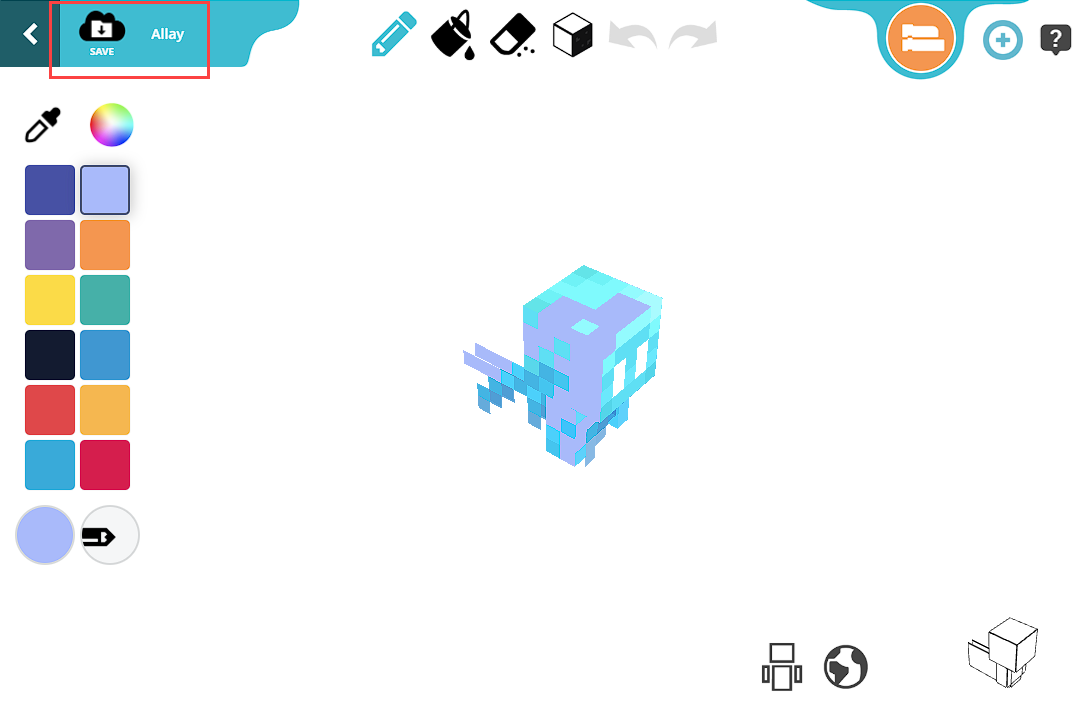
After making changes to your Tynker Minecraft resource (Mob / Item / Block) click Save and Download the .mcaddon file.
eg here we have edited the skin texture of the Minecraft Allay mob:
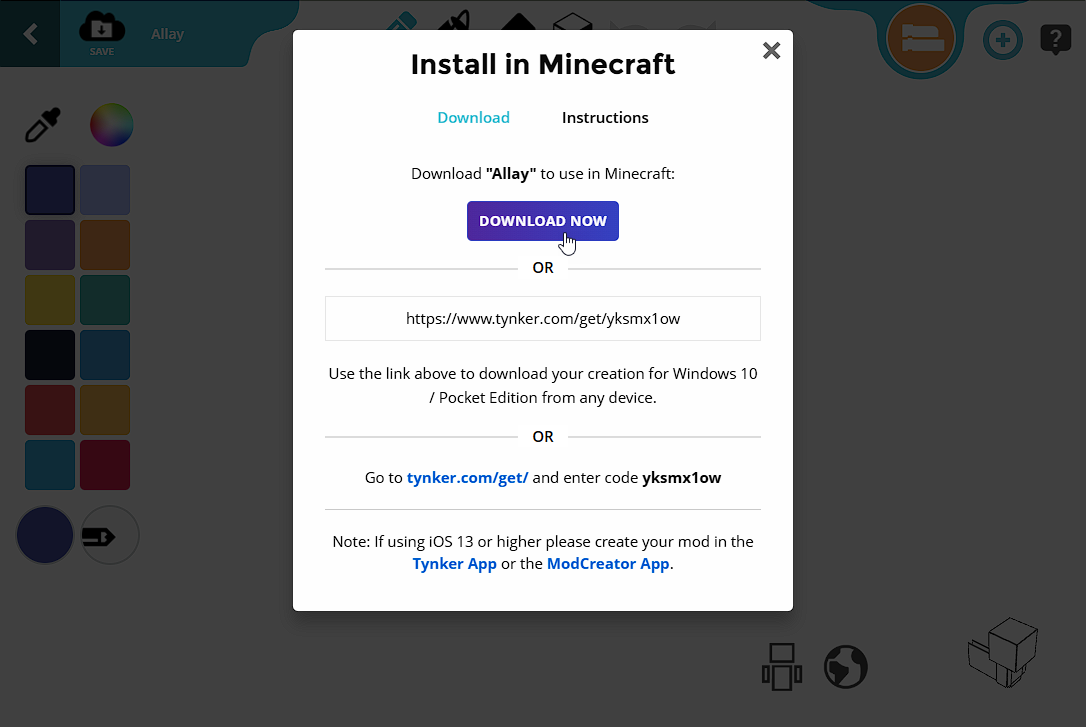
Double click your downloaded .mcaddon file to import the resource into the Minecraft app.
(If the resource is not importing into the Minecraft app you may be encountering a bug due to Minecraft's update. See updated instructions at the beginning of this article)
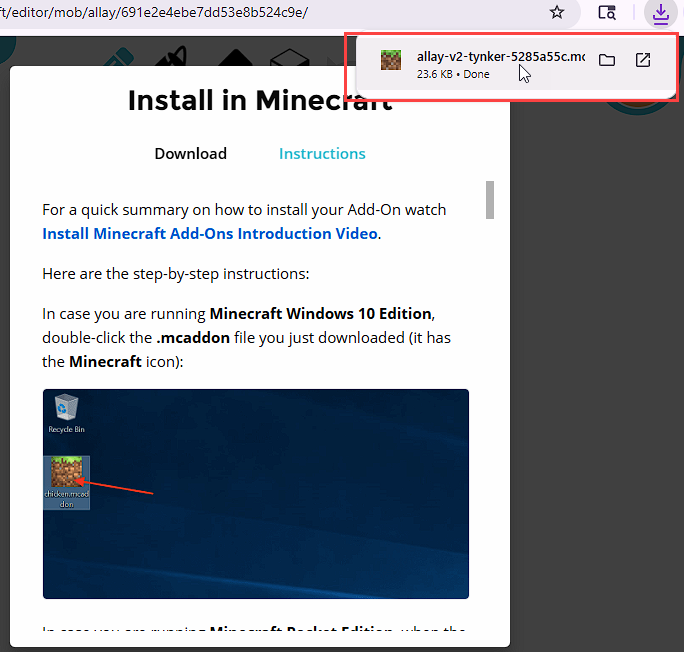
Within Minecraft Desktop App:
In your Minecraft world settings activate the Allay mob within both the Resource and Behavior packs sections
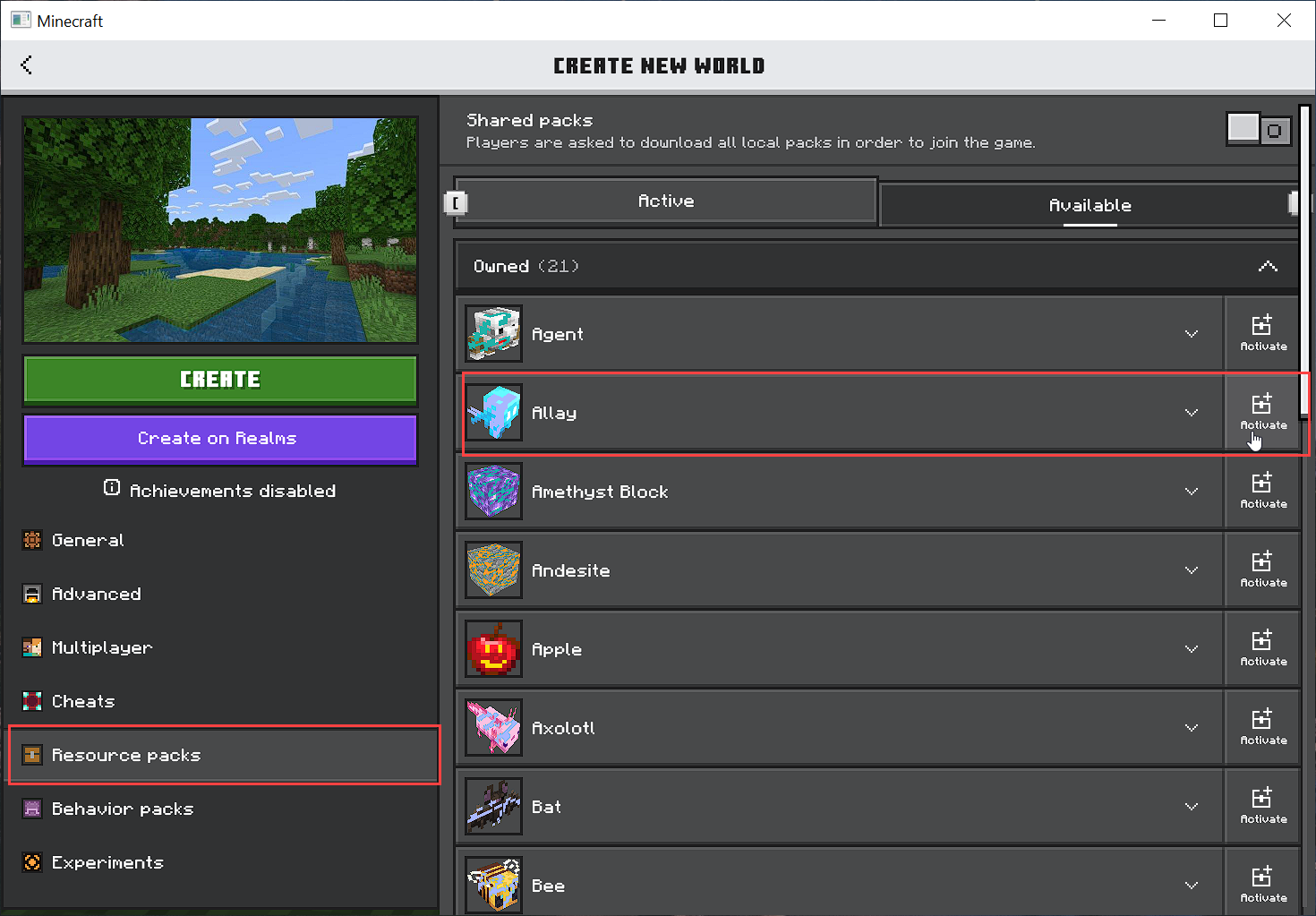
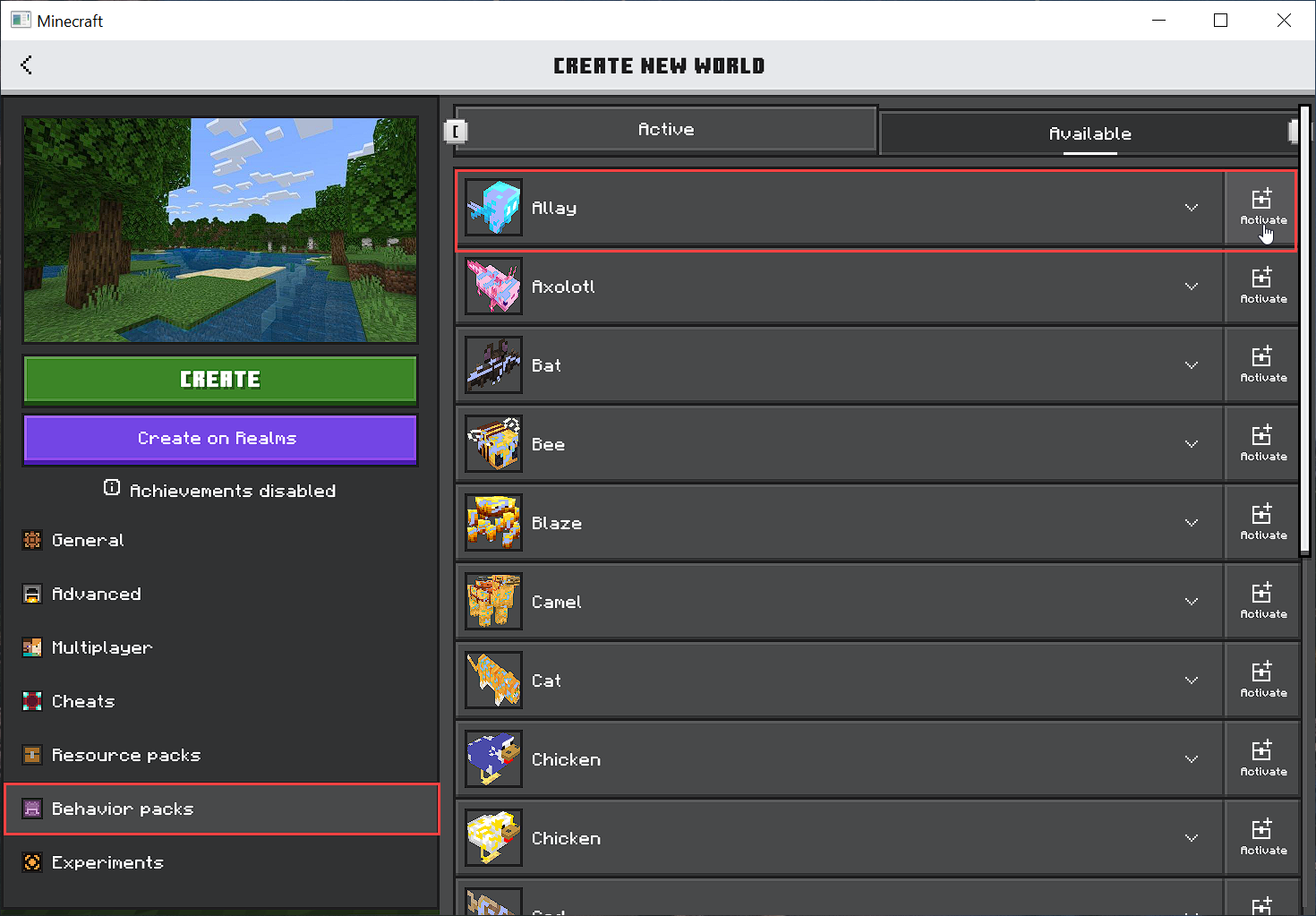
Note: Within the Minecraft settings also make sure the Minecraft world is in creative mode with cheats on.
To summon the mob, within the Minecraft world enter the command "/summon allay" into the chat and the Allay will appear with your customizations.
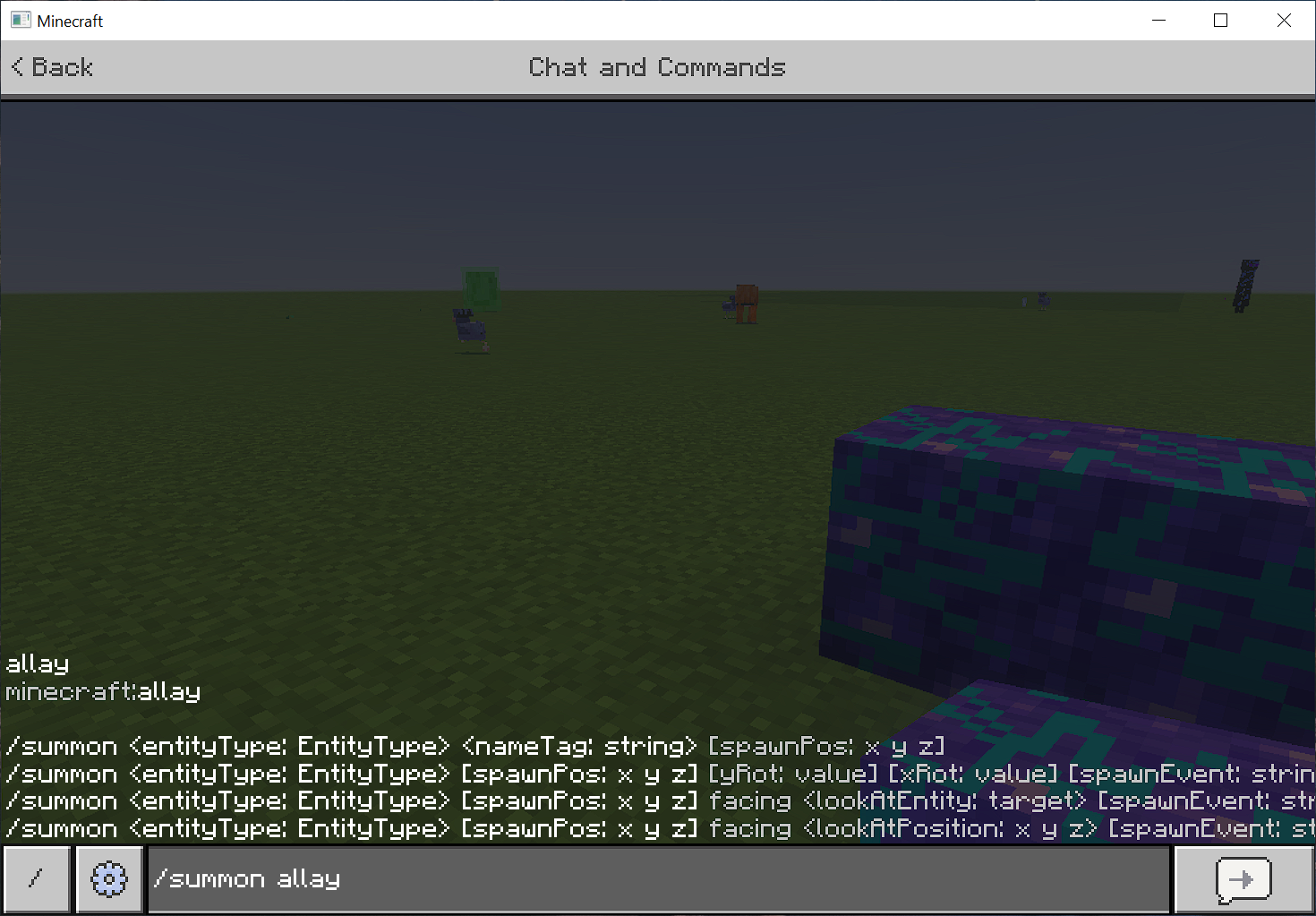
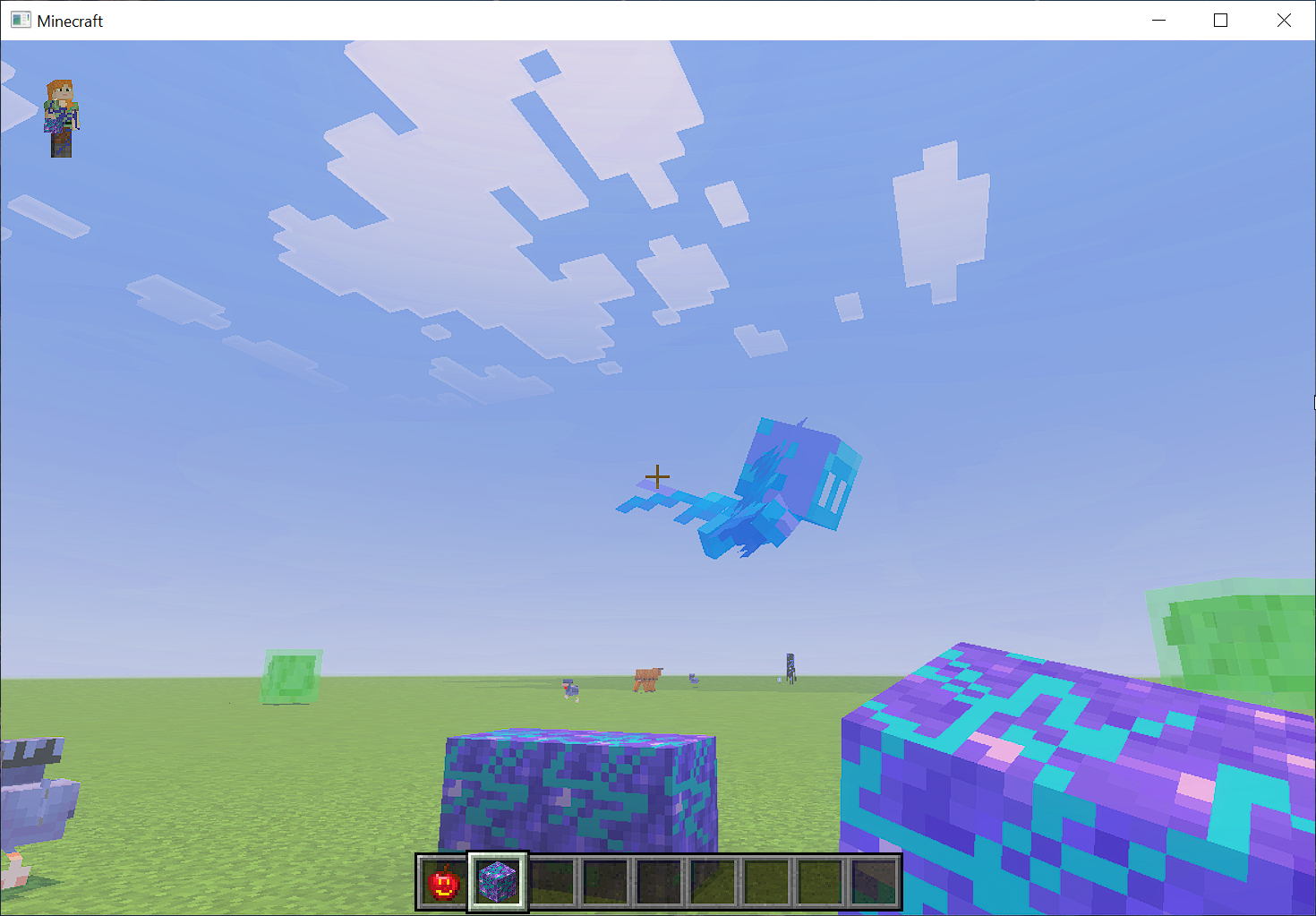
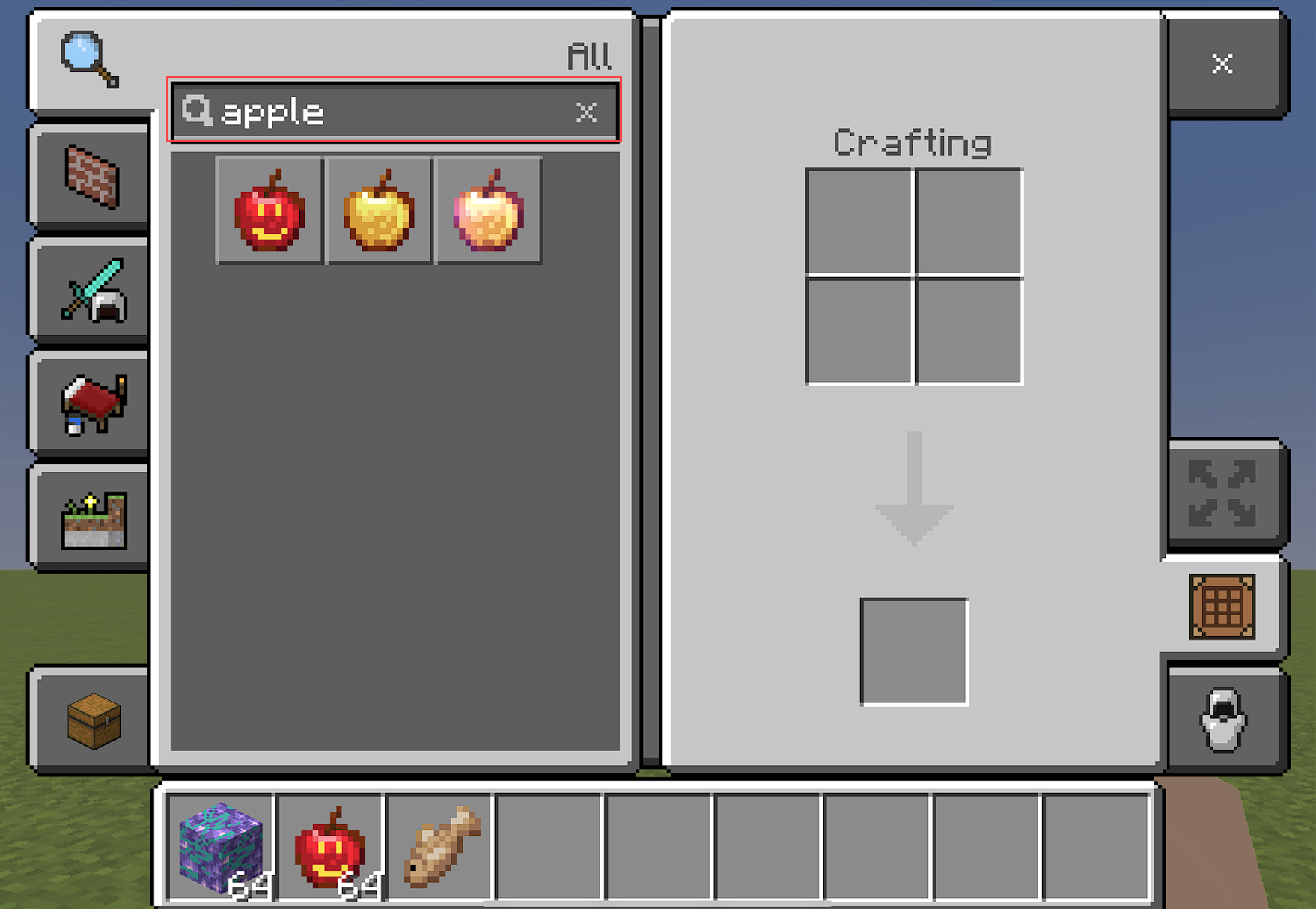
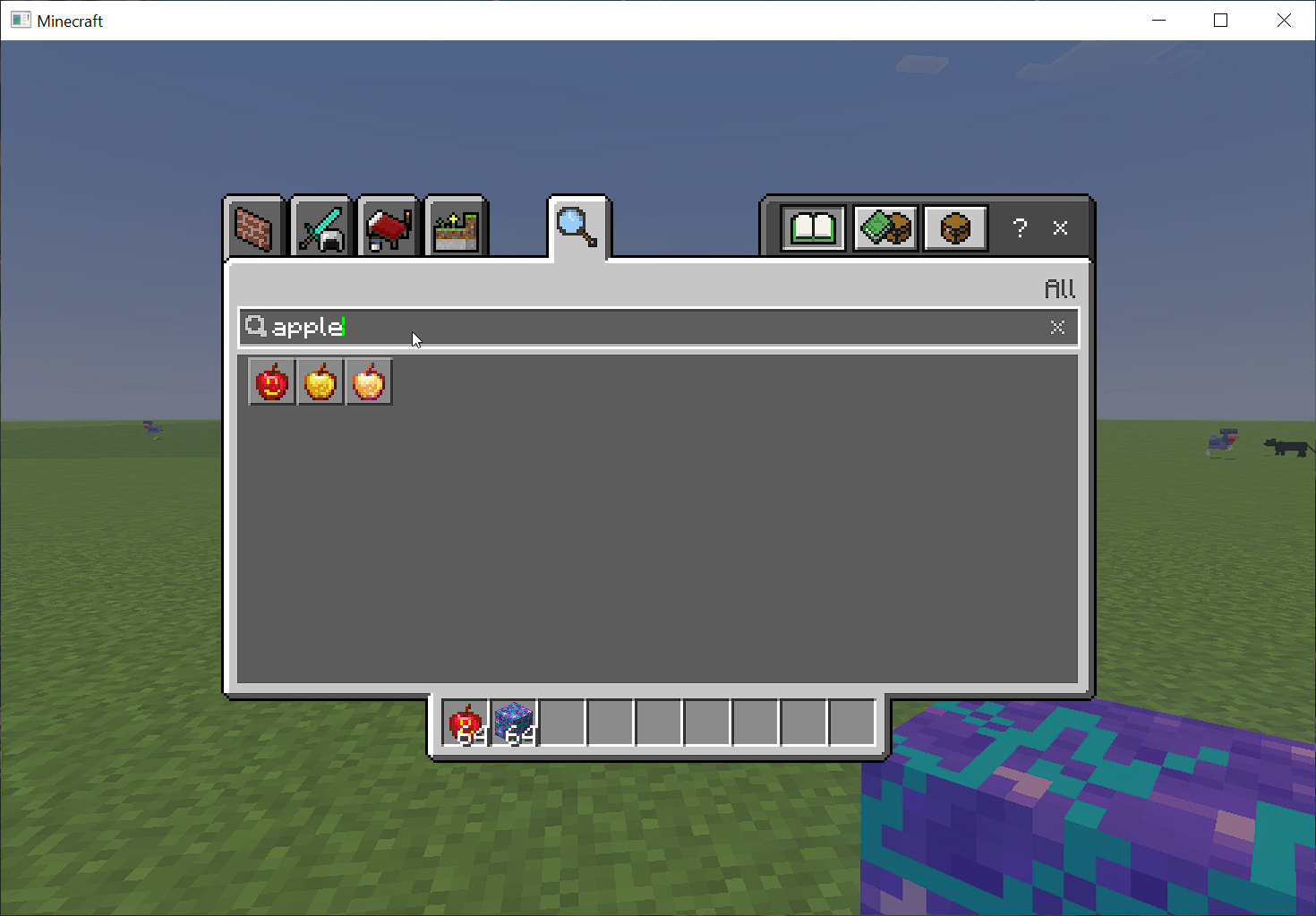
For Items and Blocks, instead of using the "/summon" command simply open up the player's inventory, search for the Item or Block, and add it to your inventory toolbar below. eg, here we customized a Minecraft Apple item:
Instructions for Mobile Devices
Within Tynker Mobile editor:
After making changes to your Tynker Minecraft resource (Mob / Item / Block), save and exit the editor. eg here we have edited the skin texture of the Minecraft Allay mob:
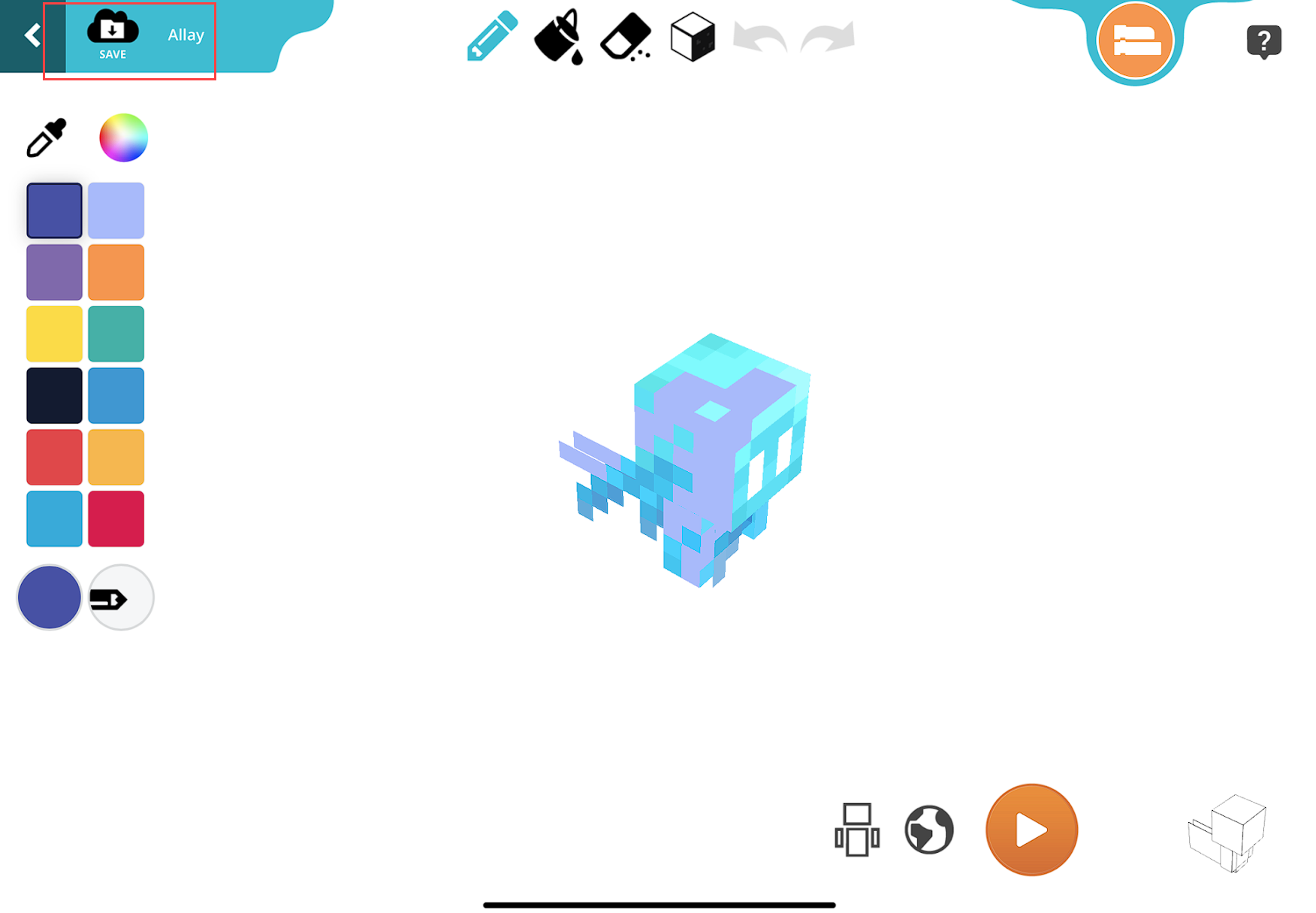
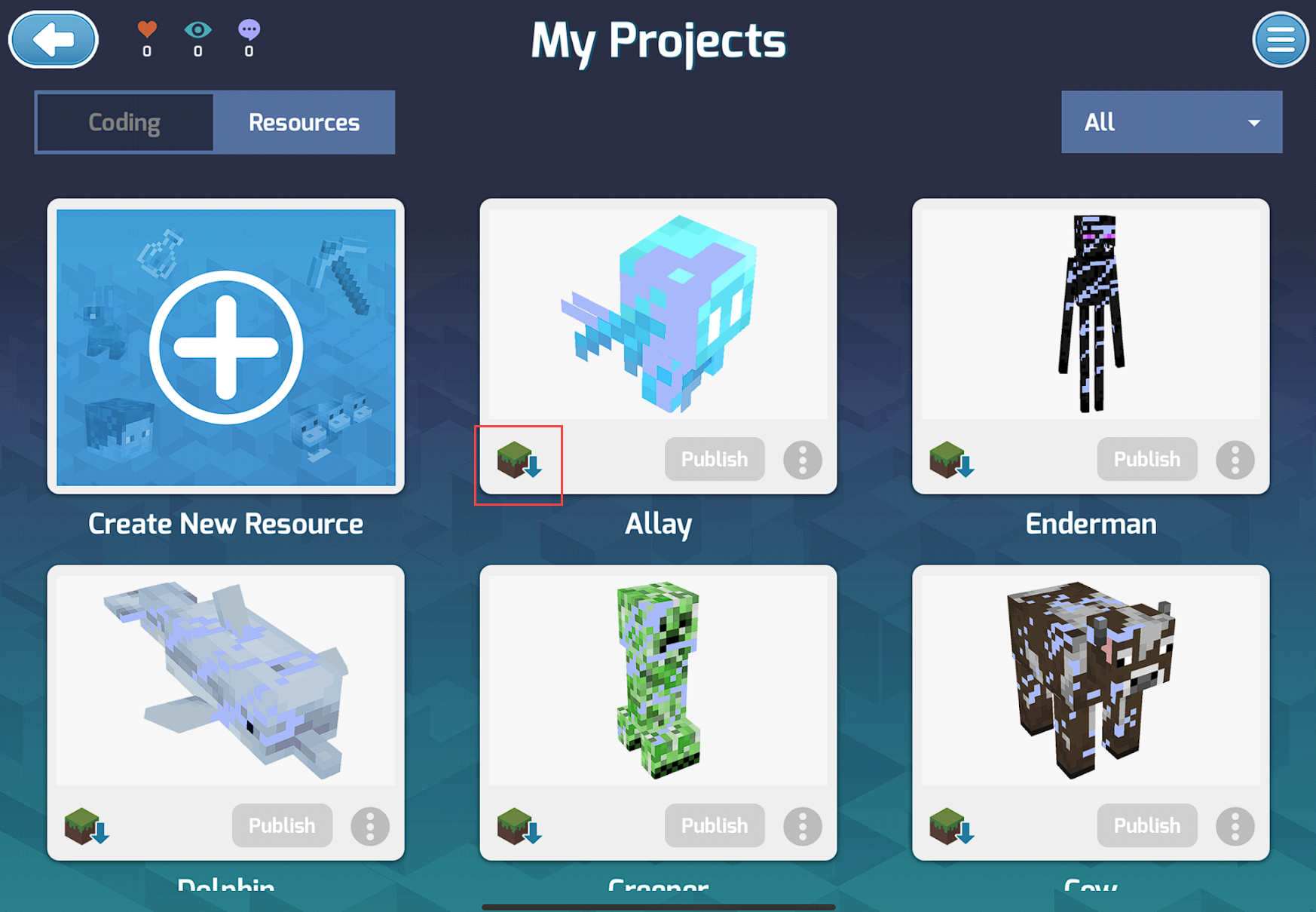
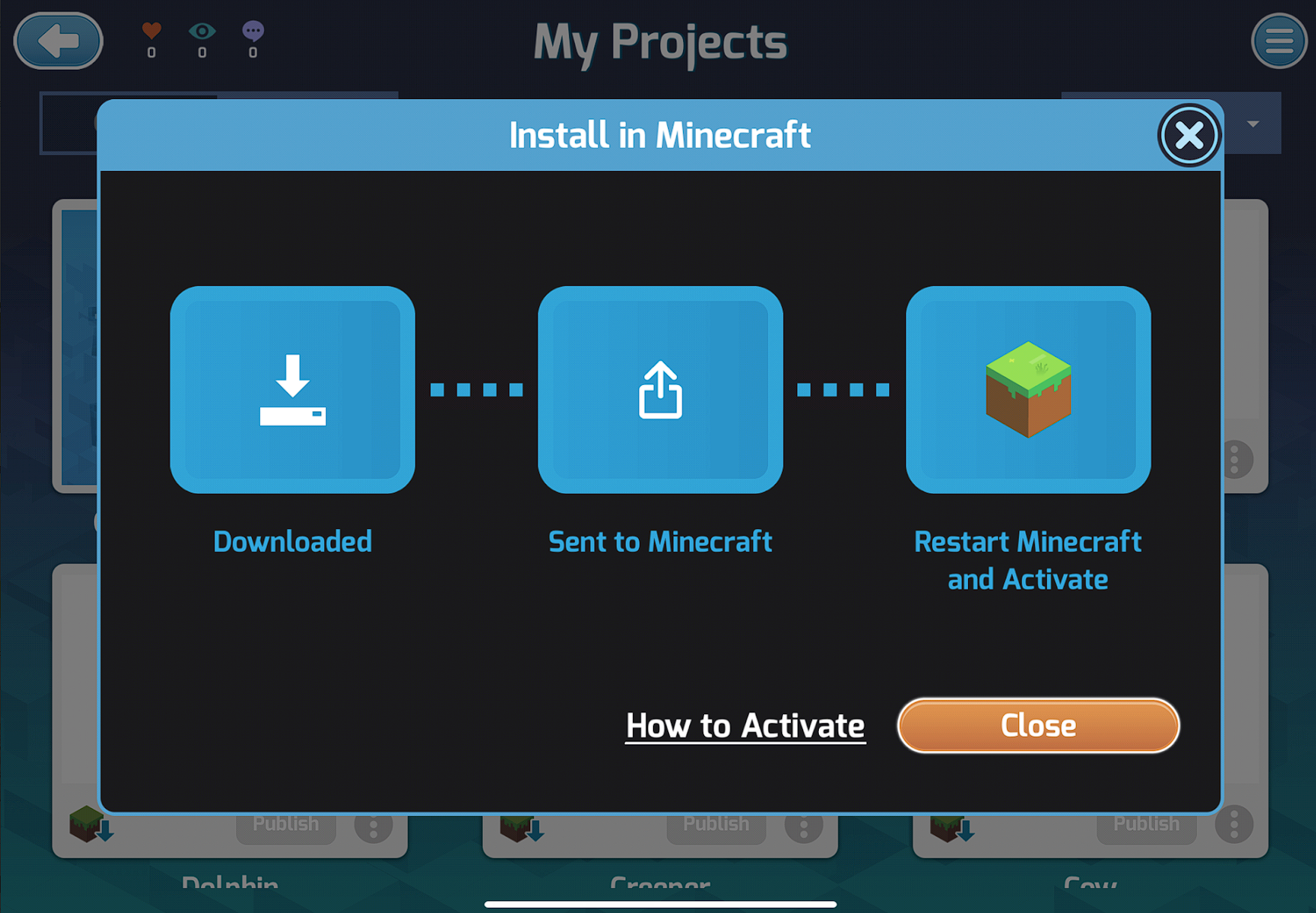
Tap on the download icon to send the resource from the Tynker App to the Minecraft app.
Note: If you download while the Minecraft app is already open in the background, make sure to restart the Minecraft app so that it registers the new resource.
Within Minecraft Mobile App:
In your Minecraft world settings activate the Allay mob within both the Resource and Behavior packs sections
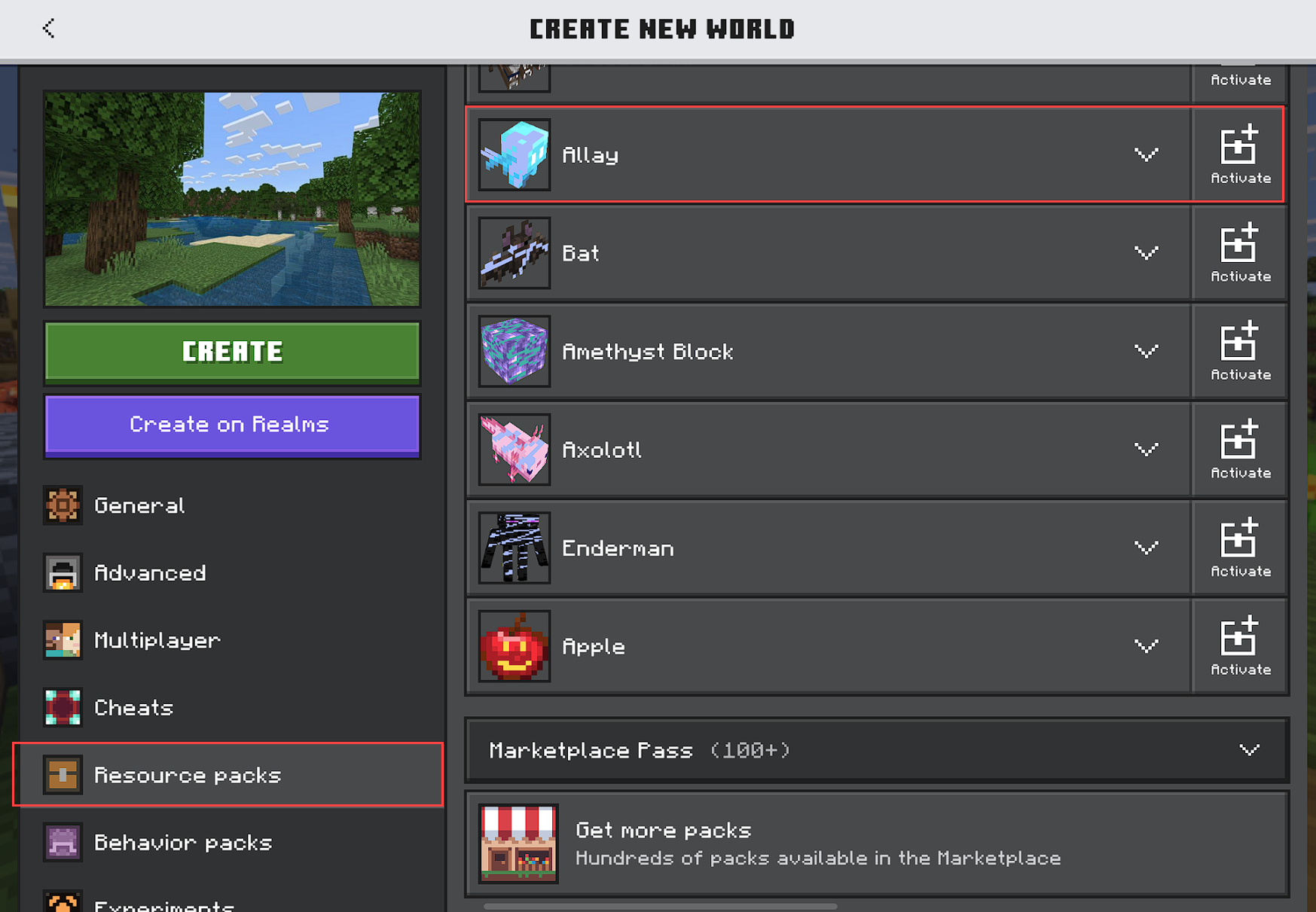
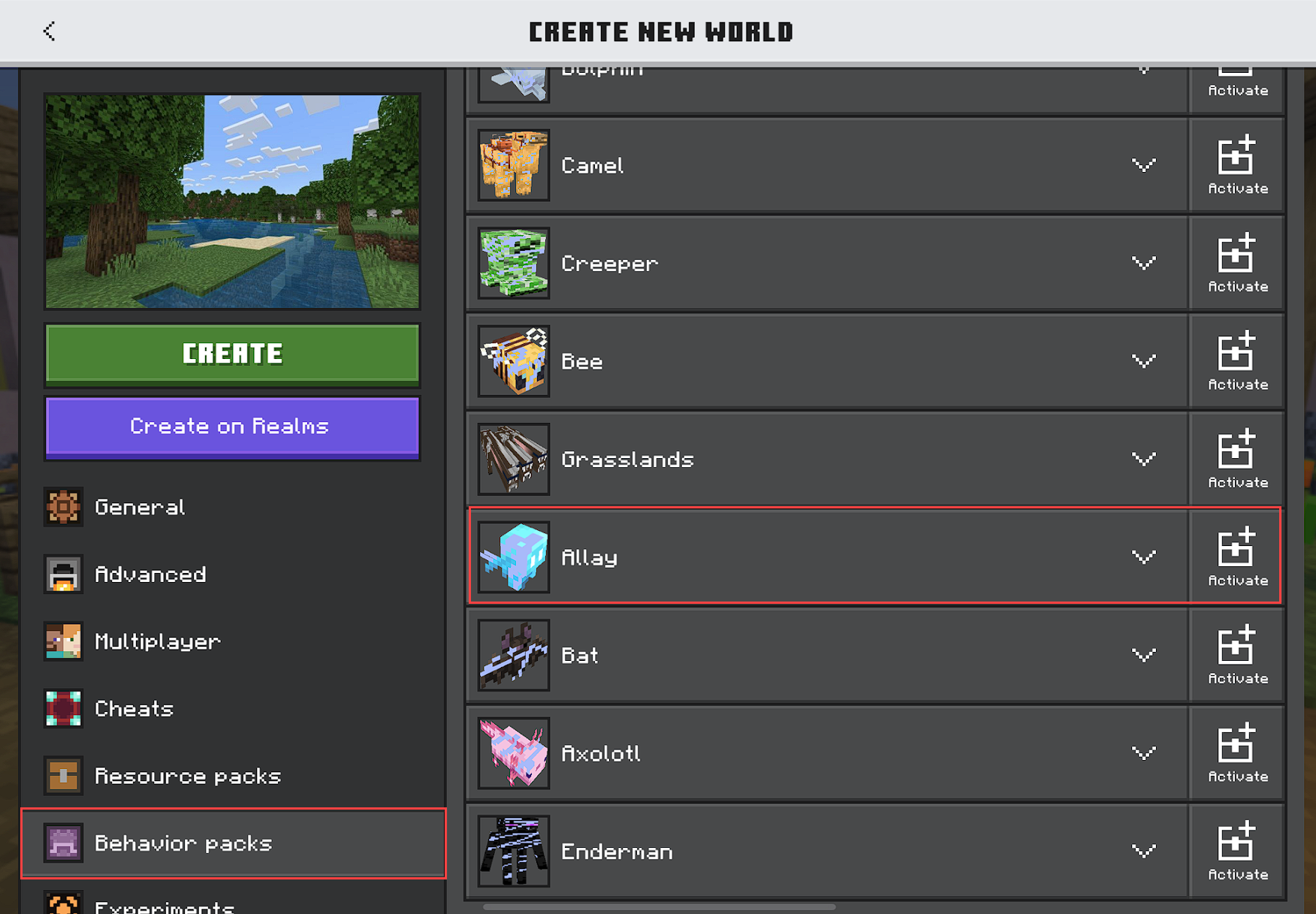
Note: Within the Minecraft settings also make sure the Minecraft world is in creative mode with cheats on.
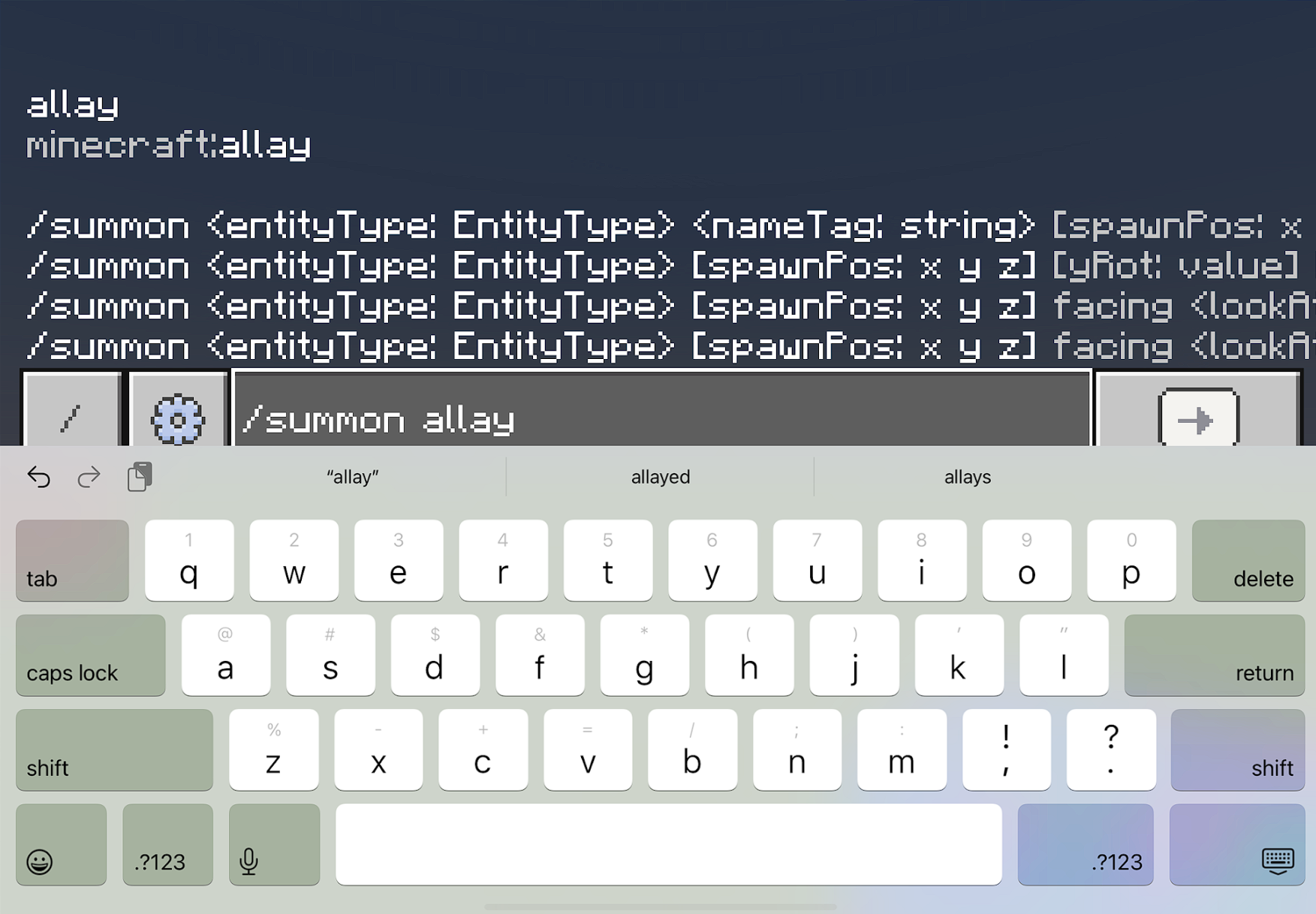
To summon the mob, within the Minecraft world enter the command "/summon allay" into the chat and the Allay will appear with your customizations.
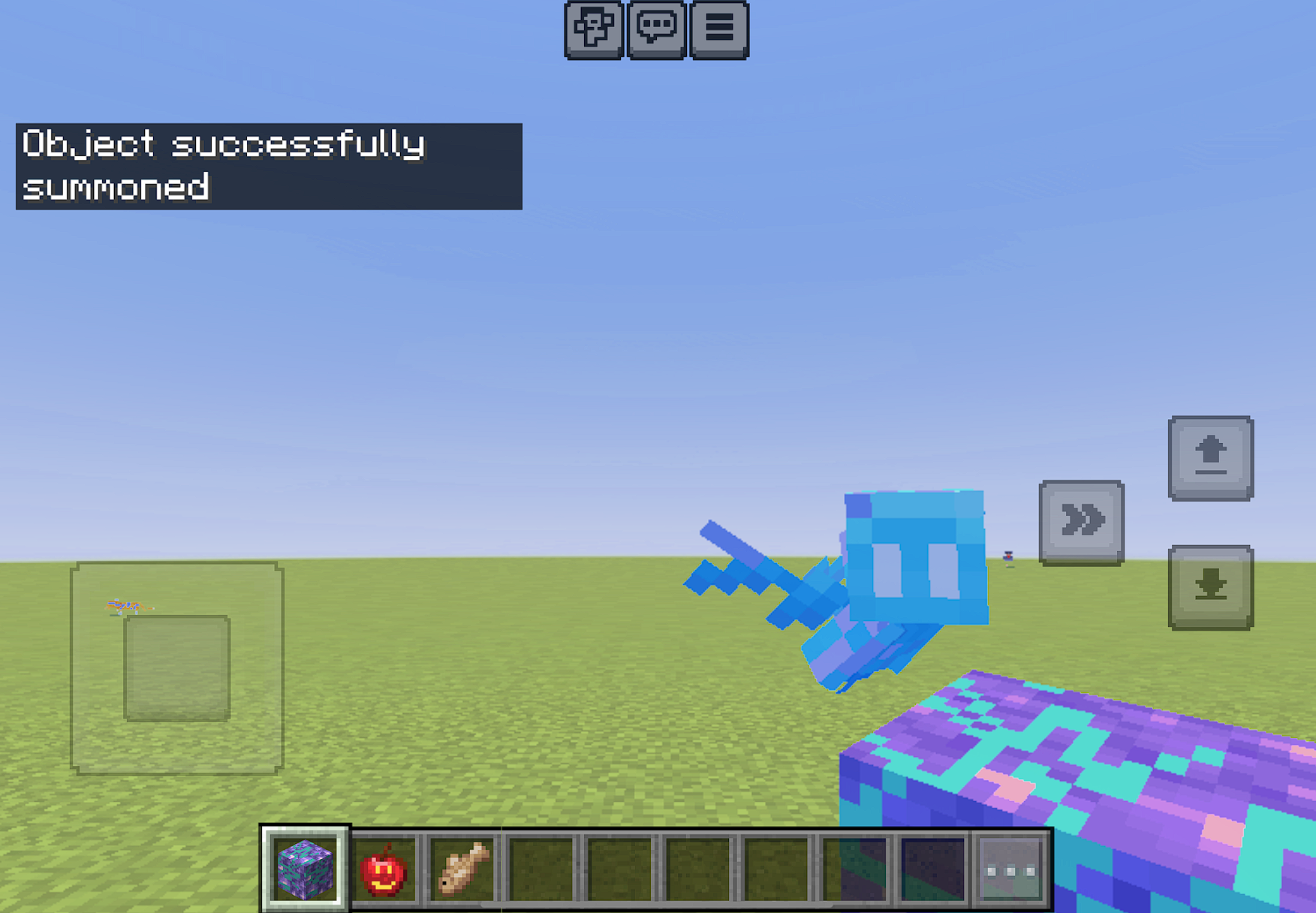
For Items and Blocks, instead of using the "/summon" command simply open up the player's inventory, search for the Item or Block, and add it to your inventory toolbar below. eg, here we customized a Minecraft Apple item: